
How to Open and Run a Shop in the DadCraft Mall
Ready to become a tiny block-business legend? The DadCraft Mall is where players can rent their own shop space, decorate it, stock it, and sell items to other players.
Here’s the easy version.
Step 1: Pick a Shop Location
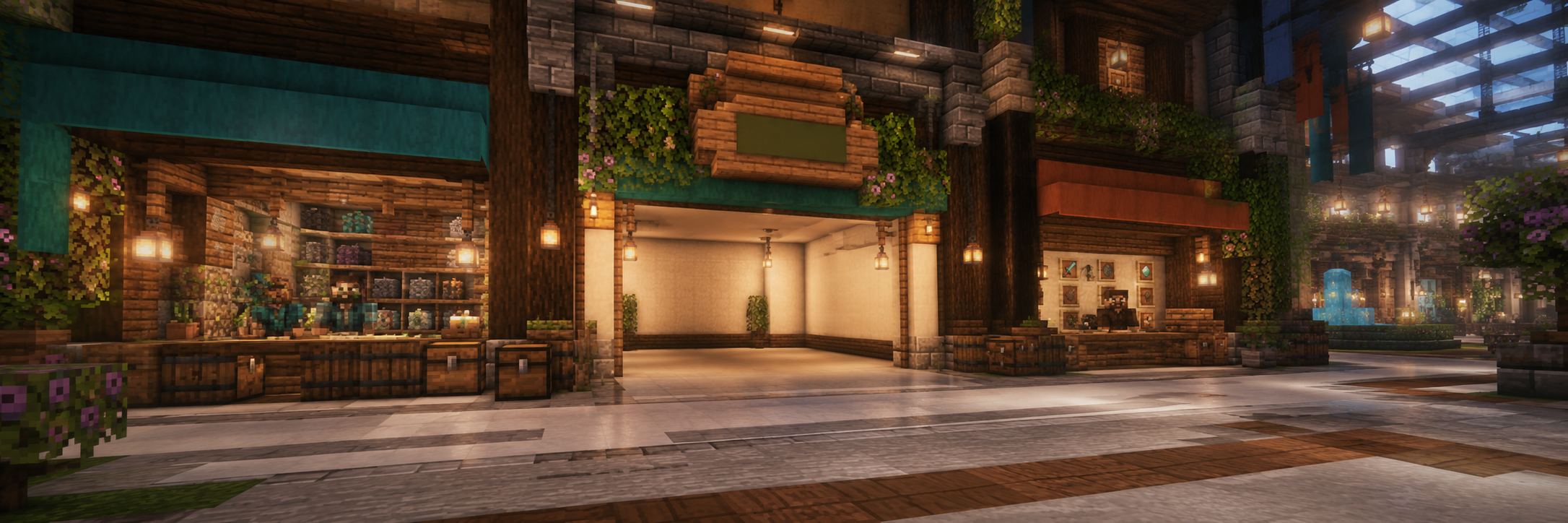
Head to /mall and look around for an empty shop you like.
Each available shop has a rent sign near the front. On most shops, the rent sign is on the bottom-left side of the empty storefront.
If the sign says Available in green, that shop is ready to rent.
Right-click the rent sign and follow the prompt to rent it.
Step 2: How Mall Rent Works
Mall shops use weekly automated rent.
On DadCraft, mall rent is charged every 7 days. As long as you have enough Lumas in your balance when rent comes due, your shop contract should renew automatically. It sounds like a lot, every 7 days, but even one decent mining or building session can earn you enough to pay for the shop. If you play consistently, you will have no issue maintaining rent. Remember to a /job to earn Luma income for your activity on the server! You can have up to 3 jobs at any time and change them any time.
Important: keep enough Lumas in your balance for rent. If rent cannot be paid when the contract renews, your shop contract may expire and your ownership or access may be removed. If that happens, the shop may return to Available for someone else to rent.
There may not be a long warning parade with confetti and a tiny accountant villager, so keep an eye on your balance.
Step 3: Start Building Your Store
Once you rent the shop, the shop region becomes yours right away.
That means you can start decorating, placing counters, setting up barrels or chests, and making the space feel like your own.
One note: the front facade of some shops may be protected so the main mall stays clean and organized. If you want to customize your storefront, open a ticket or ask staff. Staff may be able to help with temporary permissions or support so your shop can have a unique look like other stores.
Step 4: You Are Responsible for Your Stock
Your shop is your shop.
That means you are responsible for stocking and restocking your own products. The server does not refill player shops, set your prices, or manage your inventory for you.
If your chest or barrel runs out of items, your shop may show as out of stock until you refill it.
Step 5: Set Up Your First “QuickShop” Product
DadCraft Mall shops use QuickShop-style container shops for each item you want to sell in a chest. Quickshop is just the plugin that helps you place a sign and buyers click to send you Lumas. When you hear “quickshop” think of it like the price tag and the cashier all in one.
That means your shop is connected to a chest or barrel, and QuickShop automatically creates the shop sign for you. You do not type the sign manually.
To create a shop:
- Place a chest or barrel inside your rented shop.
- Put the item you want to sell into the chest or barrel.
- Hold the item in your hand.
- Make sure you are in Survival mode.
- Left-click the chest or barrel while holding the item.
- Type the price in chat when prompted.
- QuickShop will create the shop sign automatically.
Example: if you want to sell diamonds one at a time, hold 1 diamond when you create the shop.
If you want to sell items in a bundle, hold the bundle size you want to sell per purchase. For example, hold 16 logs if you want each purchase to be 16 logs.
QuickShop needs room next to the chest or barrel to place the sign. If the shop does not create, make sure at least one side of the container is open.
Step 6: Selling vs Buying
Most player shops will be sell shops, which means customers buy items from your chest or barrel.
You can also create a buy shop, which means customers sell items to you and your chest fills up. Only do this if you understand what you are buying and have enough Lumas to pay for it.
Useful commands while looking at your shop:
/qs sell
Makes the shop sell items to customers.
/qs buy
Makes the shop buy items from customers.
/qs price <amount>
Changes the price.
/qs amount
Changes the amount per transaction if your setup supports it.
Step 7: Open Your Shop Menu
Look at your shop sign or shop container and run:
/qs menu
This opens the shop control panel. From there, you can manage common shop settings without needing to memorize every command.
Depending on your permissions and the shop type, you may be able to change price, mode, amount, name, staff, or other settings.
Step 8: Removing a Shop
Do not just break the chest or barrel if you want to remove a shop.
That can leave weird shop leftovers behind, and nobody wants ghost-shop goblin energy in the mall.
The clean way:
Look at the shop and use:
/qs menu
Then remove or delete the shop from the menu.
If you need to use a command:
/qs remove
Then click the shop.
After the shop is removed, you can safely break or move the chest or barrel.
Step 9: Moving a Shop
To move a shop:
- Remove the QuickShop first.
- Pick up the chest or barrel.
- Place it in the new spot.
- Recreate the QuickShop.
Do not move shops by breaking the container first.
Step 10: Letting Someone Help
If QuickShop staff permissions are available, you may be able to add another player to help manage stock.
Use:
/qs staff add <player>
To remove them:
/qs staff del <player>
To see who has access:
/qs staff list
Only add people you trust. If someone helps run your shop, they may be able to affect your inventory or setup.
Shop Owner Tips
Put your chest or barrel behind a counter if possible. Customers should click the shop sign, not rummage through your storage.
Keep signs easy to reach and easy to read.
Do not overprice everything unless your business plan is “museum gift shop.”
Restock often. Empty shops make sad villagers.
Use clear shop names or displays if available.
Check your balance before rent renews.
Ask staff before changing the outside of your storefront.
Common Problems
My shop says out of stock.
Refill the chest or barrel connected to that shop.
I tried to create a shop but broke the barrel.
You were probably in Creative mode. Switch to Survival and try again.
The sign did not appear.
Make sure there is open space on at least one side of the chest or barrel.
Customers cannot buy from my shop.
Make sure the shop has stock, the sign exists, and the price is set correctly.
I accidentally rented the wrong shop.
Ask staff for help as soon as possible.
I want to customize my storefront.
Ask staff first. Some mall facade areas are protected.
Final Reminder
The Mall is player-run. That is what makes it fun.
The server provides the space, the rent system, and the shop tools. You bring the creativity, the stock, the prices, and the tiny empire energy.
Happy selling, shopkeeper.